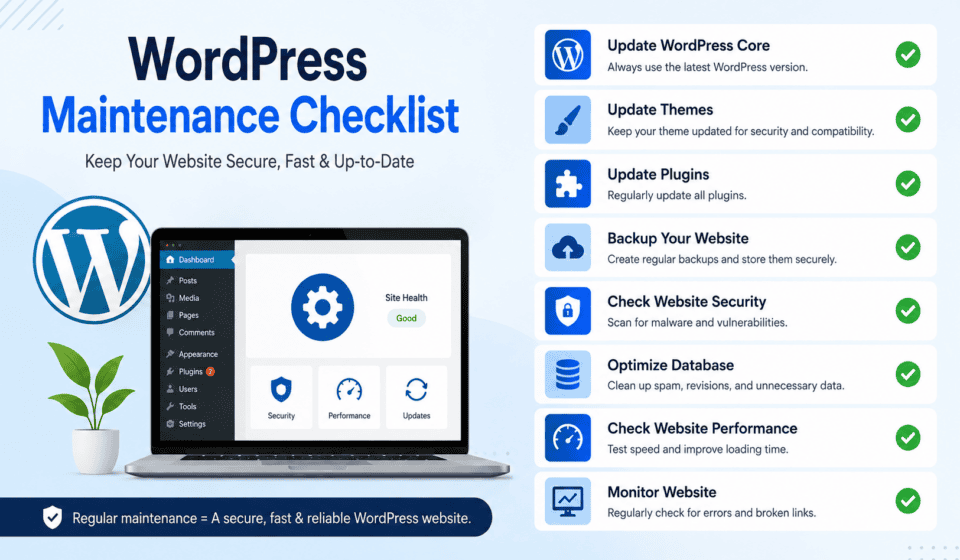

A WordPress website needs regular maintenance to stay secure, fast, reliable, and effective. Launching a website is only the beginning. Over time, outdated plugins, unused themes, database clutter, broken links, security vulnerabilities, and performance issues can affect your website and create a poor experience for visitors.
Whether you run a business website, blog, portfolio, online store, or professional service website, following a WordPress maintenance checklist can help prevent common problems before they become serious.
In this guide, you will learn what to check daily, weekly, monthly, and quarterly to keep your WordPress website running smoothly.
What Is WordPress Maintenance?
WordPress maintenance is the process of regularly checking, updating, securing, optimizing, and monitoring your website.
A maintenance routine can include:
- Updating WordPress core
- Updating plugins and themes
- Creating website backups
- Checking website security
- Improving website speed
- Removing unnecessary files
- Checking broken links
- Testing forms
- Optimizing the database
- Monitoring uptime
- Reviewing website analytics
- Checking SEO performance
- Testing website functionality
Regular maintenance reduces the risk of downtime, security problems, data loss, and performance issues.
Why Is WordPress Maintenance Important?
A WordPress website contains several components that need to work together. WordPress itself, plugins, themes, hosting software, databases, scripts, and third-party services can all affect your website.
If you ignore maintenance for a long time, small issues can turn into major problems.
1. Improve Website Security
Outdated WordPress versions, plugins, and themes may contain security vulnerabilities. Keeping your website software updated helps reduce security risks.
You should also use strong passwords, secure administrator accounts, trusted plugins, and a reliable backup system.
2. Improve Website Performance
A website can become slower as you add images, plugins, posts, database records, and other content.
Regular maintenance helps remove unnecessary files and identify performance problems.
3. Prevent Website Downtime
Broken plugins, expired services, hosting problems, and software conflicts can cause errors or downtime. Regular testing can help you identify problems early.
4. Protect Your Content
Your website may contain years of blog posts, customer information, product data, images, and configuration settings. Regular backups help protect this information if something goes wrong.
5. Improve User Experience
Visitors expect websites to load quickly and function correctly. Broken forms, missing images, error pages, or slow loading times can cause visitors to leave.
Daily WordPress Maintenance Checklist
Not every website needs extensive daily maintenance. However, important websites should have basic daily monitoring.
Check Website Availability
Visit your website regularly to make sure it loads correctly.
Check:
- Homepage
- Main navigation
- Important landing pages
- Contact page
- Login page
- Checkout page if applicable
- Important forms
If the website does not load, investigate the problem immediately.
Check Important Notifications
Log in to your WordPress dashboard and look for important notifications.
Pay attention to:
- Failed updates
- Plugin warnings
- Security alerts
- Backup failures
- Server errors
- Expired licenses
- Configuration warnings
Do not ignore critical dashboard warnings.
Monitor Website Security
If you use a security plugin or monitoring service, review important alerts.
Look for:
- Failed login attempts
- Suspicious administrator activity
- Unexpected file changes
- Malware warnings
- Unknown users
- Unusual traffic
If you discover suspicious activity, investigate before making unnecessary changes to the website.
Weekly WordPress Maintenance Checklist
Weekly maintenance is useful for most WordPress websites.
1. Create and Verify Backups
Backups are one of the most important parts of WordPress maintenance.
A complete backup should normally include:
- WordPress files
- Themes
- Plugins
- Media uploads
- WordPress database
Do not assume that a backup system is working simply because it is installed.
Periodically verify that backups are actually being created and that they can be restored.
Ideally, keep backups in a location separate from your hosting server.
2. Update WordPress
Check whether a new WordPress version is available.
Before major updates, make sure you have a recent backup.
After updating, visit the website and test important functionality.
3. Update Plugins
Go to the WordPress plugin section and check for available updates.
Update plugins that are:
- Trusted
- Actively maintained
- Compatible with your WordPress version
After updating important plugins, test your website.
Plugin conflicts can sometimes occur after updates.
4. Update Themes
Check your active theme and installed themes for updates.
If you use a child theme, make sure your customization strategy is compatible with the parent theme updates.
Delete themes that you no longer need, especially unused third-party themes that are not being maintained.
5. Check Website Forms
Test your contact forms and other important forms.
Make sure:
- Forms submit successfully
- Confirmation messages appear
- Emails are delivered
- Required fields work
- Spam protection works
A broken contact form can cause you to lose potential customers without realizing it.
6. Check Broken Links
Broken links can create a poor user experience and may negatively affect website quality.
Review important pages and links periodically.
Check:
- Internal links
- External links
- Navigation links
- Button links
- Image links
- Download links
Replace or remove links that no longer work.
Monthly WordPress Maintenance Checklist
Monthly maintenance should involve a deeper review of your website.
1. Review Website Speed
Website performance can change over time.
Test important pages and look for:
- Slow-loading images
- Large files
- Excessive scripts
- Unnecessary plugins
- Poor hosting performance
- Caching problems
- Slow database queries
Use a reliable website performance testing tool to identify potential improvements.
Do not focus only on a single speed score. Look at real loading problems and how visitors experience the website.
2. Optimize Images
Large images are a common cause of slow websites.
Review your media library and optimize images where appropriate.
Consider:
- Resizing oversized images
- Compressing images
- Using modern image formats
- Removing unnecessary images
- Serving appropriately sized images
Avoid uploading a 5,000-pixel image when the website only displays it at 800 pixels.
3. Clean the WordPress Database
Over time, WordPress databases can accumulate unnecessary information.
Depending on your website, this may include:
- Post revisions
- Spam comments
- Trashed content
- Expired temporary data
- Unused metadata
- Other unnecessary records
Always create a backup before performing database cleanup.
Database optimization should be performed carefully because deleting the wrong information can cause problems.
4. Review Installed Plugins
More plugins do not automatically mean a bad website, but unnecessary plugins can increase maintenance requirements and potential conflicts.
Review every installed plugin and ask:
- Is this plugin still needed?
- Is it actively maintained?
- Is it providing a necessary feature?
- Does another plugin already provide the same feature?
- Is it causing performance problems?
Remove plugins you no longer need.
Do not simply deactivate unnecessary plugins and leave them installed forever. If a plugin is genuinely unnecessary, remove it after confirming that nothing depends on it.
5. Review WordPress Users
Check your user accounts regularly.
Remove accounts that are no longer needed.
Review administrator accounts especially carefully because administrator privileges provide extensive control over the website.
Use the principle of least privilege: give users only the permissions they need.
6. Check Website Analytics
Review your website analytics every month.
Look for:
- Traffic trends
- Most visited pages
- Traffic sources
- Popular content
- Search traffic
- Engagement
- Conversion activity
Analytics can help you identify both technical problems and content opportunities.
For example, if an important landing page receives significant traffic but generates few conversions, it may need improvement.
Quarterly WordPress Maintenance Checklist
Every few months, perform a more comprehensive website audit.
1. Review Website Security
Perform a deeper security review.
Check:
- Administrator accounts
- Password security
- Plugin security
- Theme security
- Login protection
- File permissions
- Security monitoring
- Backup systems
Make sure you know how you would respond if your website were hacked.
2. Test Your Backup Restoration Process
Creating backups is not enough.
You should know whether your backups can actually restore your website.
If possible, test restoration in a safe environment rather than experimenting on your live website.
A backup that cannot be restored is not a reliable backup strategy.
3. Review Hosting Resources
Check your hosting account and resource usage.
Depending on your hosting provider, monitor:
- Storage
- Bandwidth
- CPU usage
- Memory usage
- Database size
- Server response time
If your website is consistently reaching resource limits, it may be time to optimize the website or consider a better hosting plan.
4. Audit Website SEO
Perform a basic SEO audit.
Check:
- Page titles
- Meta descriptions
- Headings
- Internal links
- XML sitemap
- Indexing
- Canonical URLs
- Broken links
- Image alt text
- Redirects
Also review your important pages in search results.
SEO maintenance is not a one-time task. Search engines, competitors, user behavior, and your content can all change over time.
5. Review Content
Old content can become outdated.
Review important articles and pages for:
- Incorrect information
- Outdated statistics
- Broken links
- Old screenshots
- Expired offers
- Outdated products or services
- Missing information
Update valuable content instead of automatically publishing new content.
6. Test Website Responsiveness
Open your website on different screen sizes.
Pay special attention to:
- Navigation
- Buttons
- Forms
- Images
- Tables
- Text size
- Popups
- Mobile menus
A page that looks perfect on a desktop computer may not work correctly on a smartphone.
WordPress Maintenance Checklist for E-Commerce Websites
If you operate an online store, maintenance becomes even more important.
Regularly test:
- Product pages
- Add-to-cart functionality
- Cart page
- Checkout
- Payment methods
- Coupon codes
- Shipping settings
- Tax settings
- Order emails
- Customer accounts
- Refund functionality
- Inventory
- Transaction notifications
Perform test purchases when appropriate to ensure the entire customer journey works correctly.
A technical problem during checkout can directly affect revenue.
WordPress Security Checklist
Security should be part of every maintenance routine.
Use Strong Passwords
Use unique passwords for WordPress administrator accounts.
Avoid simple passwords based on names, dates, businesses, or common words.
Enable Two-Factor Authentication
Two-factor authentication adds another layer of protection to administrator accounts.
Limit Administrator Accounts
Only trusted users should have administrator privileges.
Remove Unused Accounts
Delete accounts that are no longer required.
Keep Software Updated
Regularly update WordPress, plugins, and themes.
Use Trusted Plugins and Themes
Download WordPress extensions from reputable sources and avoid suspicious or pirated software.
Maintain Backups
Keep recent backups that can be restored.
Use Secure Hosting
Choose a hosting provider with appropriate security, backup, and server management features.
WordPress Performance Checklist
Use this quick checklist when your website feels slow:
- Optimize large images
- Enable appropriate caching
- Reduce unnecessary plugins
- Remove unused themes
- Minimize unnecessary scripts
- Optimize the database
- Review hosting resources
- Check server response time
- Reduce excessive third-party services
- Keep WordPress software updated
Remember that performance optimization should be based on actual problems rather than installing many optimization plugins without testing their effects.
WordPress Maintenance Checklist: Quick Reference
Here is a simple checklist you can save and use regularly.
Daily
- Check website availability
- Check important security alerts
- Review critical dashboard notifications
- Confirm important services are working
Weekly
- Verify backups
- Check WordPress updates
- Update trusted plugins
- Update themes
- Test important forms
- Check important links
- Review security activity
Monthly
- Test website speed
- Optimize images
- Clean unnecessary database data
- Review installed plugins
- Review WordPress users
- Check analytics
- Review hosting resources
Quarterly
- Perform a security audit
- Test backup restoration
- Review hosting performance
- Perform an SEO audit
- Update outdated content
- Test mobile responsiveness
- Review website functionality
Yearly
- Review hosting plan
- Review domain registration
- Review SSL certificate
- Review premium plugin licenses
- Review theme licenses
- Review third-party services
- Perform a complete website audit
How to Create a WordPress Maintenance Routine
The best maintenance system is one that you can consistently follow.
Start by creating a simple maintenance calendar.
For example:
Every Monday: Check updates, backups, forms, and security.
First week of every month: Review speed, database, plugins, users, and analytics.
Every three months: Perform a complete security, SEO, performance, and content audit.
Once a year: Review hosting, domain, licenses, services, and the overall website strategy.
You can use a spreadsheet, project management tool, calendar, or maintenance management system to track completed tasks.
For larger websites, consider documenting maintenance procedures so another team member can follow them if necessary.
Final Thoughts
Regular WordPress maintenance is essential for keeping a website secure, fast, functional, and reliable. You do not need to spend hours every day maintaining your website. Instead, create a consistent routine and divide tasks into daily, weekly, monthly, quarterly, and yearly activities.
The most important areas to prioritize are backups, security, updates, performance, SEO, content, and functionality.
Remember that maintenance is not simply about fixing problems after they occur. Good maintenance is about preventing problems before they affect your visitors, search rankings, customers, or business.
Use this WordPress Maintenance Checklist as a practical starting point. By following it consistently, you can reduce technical problems, improve website performance, protect your content, and provide visitors with a better overall experience.
A well-maintained WordPress website is easier to manage, safer to operate, and better prepared for long-term growth.