
In today’s fast-moving digital world, website speed and user experience are more important than ever. Visitors expect websites to load quickly, respond smoothly, and remain visually stable while they browse. If a website is slow, difficult to interact with, or constantly shifts around the screen, users may leave before completing an action.
This is where Core Web Vitals come in.
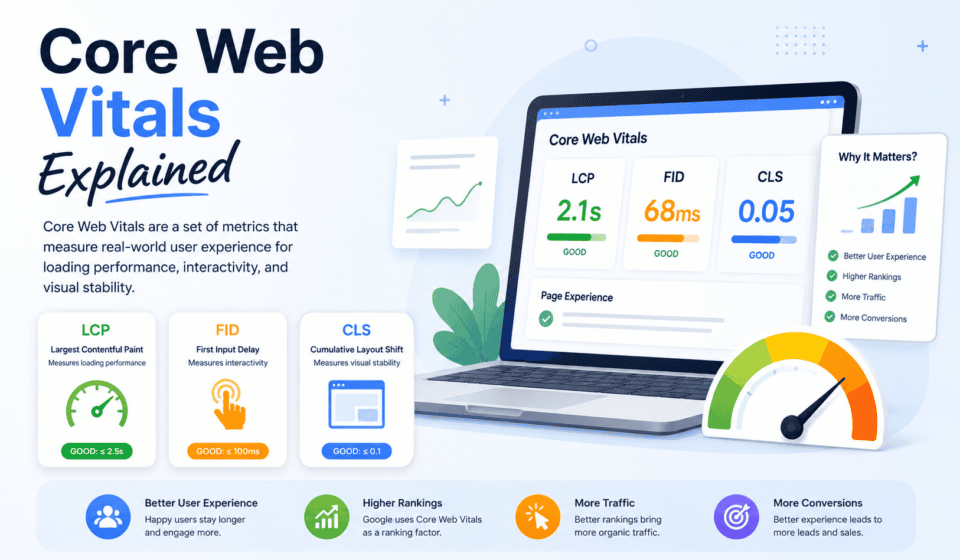
Core Web Vitals are a set of Google-defined metrics designed to measure important aspects of real-world user experience. They focus on three key areas: loading performance, interactivity, and visual stability. The current Core Web Vitals are Largest Contentful Paint (LCP), Interaction to Next Paint (INP), and Cumulative Layout Shift (CLS).
For WordPress website owners, bloggers, web designers, developers, and digital marketers, understanding these metrics is essential for creating websites that provide a better experience for visitors.
In this guide, you’ll learn what Core Web Vitals are, why they matter, how each metric works, how to measure them, and practical ways to improve Core Web Vitals on a WordPress website.
What Are Core Web Vitals?
Core Web Vitals are standardized performance metrics that measure specific aspects of the user experience on a website.
Unlike simply measuring how many seconds a website takes to load completely, Core Web Vitals focus on what the visitor actually experiences.
They answer questions such as:
- How quickly does the main content appear?
- How quickly does the website respond when someone interacts with it?
- Does the page unexpectedly move while the visitor is reading or clicking?
Google currently uses three Core Web Vitals:
- Largest Contentful Paint (LCP) – measures loading performance.
- Interaction to Next Paint (INP) – measures responsiveness.
- Cumulative Layout Shift (CLS) – measures visual stability.
Google recommends evaluating these metrics at the 75th percentile of page visits, separately for mobile and desktop users. A page should meet the recommended threshold for all three metrics to provide a good Core Web Vitals experience.
Core Web Vitals Thresholds
| Metric | Good | Needs Improvement | Poor |
|---|---|---|---|
| LCP | ≤ 2.5 seconds | 2.5–4 seconds | > 4 seconds |
| INP | ≤ 200 ms | 200–500 ms | > 500 ms |
| CLS | ≤ 0.1 | 0.1–0.25 | > 0.25 |
These thresholds are based on real-world user experience research and field data.
1. Largest Contentful Paint (LCP)
Largest Contentful Paint, commonly called LCP, measures how quickly the largest visible content element appears on the screen.
In simple terms, LCP answers this question:
“How long does it take for the main content of this page to become visible?”
The LCP element might be:
- A large hero image
- A featured image
- A video poster image
- A large heading
- A prominent text block
For example, imagine someone visits a blog post. The page begins loading, but the large featured image and main heading take several seconds to appear. Even if other elements load quickly, the visitor may feel that the page is slow.
A good LCP should be 2.5 seconds or less for at least 75% of page visits. An LCP above 4 seconds is considered poor.
Common Causes of Poor LCP
Several factors can make LCP slower:
- Slow web hosting
- Slow server response time
- Large unoptimized images
- Render-blocking CSS or JavaScript
- Poor caching
- Excessive redirects
- Slow fonts
- Too many third-party scripts
- Lack of a CDN
- Poorly optimized WordPress themes or plugins
How to Improve LCP
Optimize Images
Large images are one of the most common causes of slow loading.
Before uploading an image to WordPress:
- Resize it to the required dimensions.
- Compress it.
- Use modern formats such as WebP or AVIF when appropriate.
- Avoid uploading unnecessarily large images.
For example, if a featured image is displayed at 1160 × 690 pixels, there is usually little benefit in uploading a 5000-pixel-wide image.
Improve Hosting
Your web server plays an important role in performance. Cheap or overloaded hosting can increase server response time.
Choose hosting that provides:
- Fast server infrastructure
- SSD or NVMe storage
- Reliable caching
- Good server response times
- CDN integration
- Adequate resources for your traffic
Use Caching
Caching allows frequently requested resources or generated pages to be served faster.
WordPress caching can reduce the amount of work the server needs to perform for every visitor.
Optimize the Largest Element
Identify which element is being measured as LCP and optimize that specific resource.
If your LCP is a hero image, compress and properly size the image. If it is a text heading, check whether fonts or CSS are delaying its rendering.
2. Interaction to Next Paint (INP)
Interaction to Next Paint (INP) measures how responsive a website is when visitors interact with it.
It replaced First Input Delay (FID) as a Core Web Vital in 2024.
INP looks at interactions such as:
- Clicking a button
- Selecting a menu
- Opening a navigation panel
- Typing into a form
- Adding an item to a cart
- Using interactive features
The goal is to ensure that the website responds quickly after a user interaction.
A good INP score is 200 milliseconds or less. Scores above 500 milliseconds are considered poor.
Why Is INP Important?
Imagine clicking a “Submit” button and nothing appears to happen for one or two seconds.
You might click it again.
Then again.
Eventually, you may assume the website is broken.
That creates a frustrating user experience.
A fast-loading website isn’t necessarily a responsive website. A page may load quickly but still feel slow when visitors interact with it because of excessive JavaScript or inefficient event handling.
Common Causes of Poor INP
Poor INP is often associated with:
- Too much JavaScript
- Long JavaScript tasks
- Heavy WordPress plugins
- Complex animations
- Large third-party scripts
- Poorly optimized themes
- Excessive DOM complexity
- Inefficient event handlers
How to Improve INP
Reduce Unnecessary JavaScript
Review the JavaScript being loaded by your website.
Ask:
- Do I really need this script?
- Which plugin is loading it?
- Can it be delayed?
- Can it be removed from pages where it isn’t needed?
Removing unnecessary JavaScript can make a noticeable difference.
Reduce Plugin Bloat
WordPress plugins can add functionality, but every plugin may introduce additional CSS, JavaScript, database queries, or external resources.
Instead of installing multiple plugins that provide overlapping features, use a smaller number of well-maintained plugins that you actually need.
Optimize Third-Party Scripts
Analytics, advertising, social media widgets, chat systems, tracking tools, and other third-party services can increase page processing.
Load non-essential scripts strategically rather than allowing everything to execute immediately.
Break Up Long Tasks
Long JavaScript tasks can block the browser from responding to user interactions.
Breaking large tasks into smaller pieces allows the browser to respond more quickly.
3. Cumulative Layout Shift (CLS)
Cumulative Layout Shift, or CLS, measures visual stability.
Have you ever tried to click a button on a website, only for the page to move just before you click it?
That’s a layout shift.
For example, you are reading an article and suddenly an advertisement loads above the paragraph. The content moves downward.
Or you try to click “Buy Now,” but an image loads and moves the button, causing you to click something else.
These experiences are frustrating and can even cause accidental actions.
A good CLS score is 0.1 or less, while a score above 0.25 is considered poor.
Common Causes of Poor CLS
Common causes include:
- Images without defined dimensions
- Dynamically inserted advertisements
- Web fonts causing content changes
- Popups appearing unexpectedly
- Embedded content without reserved space
- Dynamically loaded elements
- Incorrectly sized banners
- Late-loading CSS
How to Improve CLS
Specify Image Dimensions
Always provide appropriate width and height attributes for images.
This allows the browser to reserve space before the image finishes downloading.
WordPress generally handles image dimensions automatically when images are inserted correctly, but custom code and page builders can sometimes cause problems.
Reserve Space for Ads
If you display advertisements, reserve the required space before the ad loads.
Otherwise, the advertisement may push existing content downward.
Be Careful With Popups
Popups, banners, cookie notices, and promotional messages should not unexpectedly shift the main content.
Use overlays or reserved areas where appropriate.
Optimize Web Fonts
Fonts can sometimes cause text to change size or appearance after the page starts rendering.
Use sensible font-loading strategies and avoid unnecessary font variations.
Core Web Vitals and WordPress
WordPress powers a large portion of the web, making performance optimization especially important for WordPress website owners.
The good news is that you don’t always need to be an advanced developer to improve Core Web Vitals.
Start with the fundamentals.
1. Choose a Lightweight Theme
Your WordPress theme affects the amount of CSS, JavaScript, HTML, and other resources loaded by your site.
A lightweight, well-coded theme can provide a better foundation for performance.
Avoid themes that include large numbers of unnecessary features if you don’t use them.
2. Use a Good Caching Solution
Page caching, browser caching, and other performance techniques can reduce loading times.
However, avoid activating every optimization setting blindly. Some aggressive settings can cause layout or functionality problems.
After changing performance settings, test your website.
3. Optimize Images
Image optimization should be part of every WordPress performance strategy.
Consider:
- Compressing images before upload
- Using WebP or AVIF
- Choosing appropriate dimensions
- Lazy-loading below-the-fold images
- Avoiding oversized images
Be particularly careful with the image that becomes your LCP element. Lazy-loading the primary above-the-fold LCP image can sometimes delay LCP, so critical images should be handled differently from images lower on the page.
4. Use a Content Delivery Network
A Content Delivery Network (CDN) stores or serves resources from locations closer to visitors.
This can reduce network latency, particularly when your audience is geographically distributed.
5. Minimize Unnecessary Plugins
Plugins are not automatically bad for performance.
The problem is unnecessary functionality.
Review your installed plugins regularly and remove plugins you don’t need.
6. Keep WordPress Updated
Keep WordPress core, themes, and plugins updated.
Updates can include performance improvements, bug fixes, security fixes, and compatibility improvements.
Always maintain a backup before making major changes.
How to Measure Core Web Vitals
You don’t need to guess whether your website has good Core Web Vitals. Several tools can help you measure performance.
Google PageSpeed Insights
PageSpeed Insights is one of the most useful tools for website owners.
It provides both lab data and, when available, real-world field data based on the Chrome User Experience Report.
It can show information about:
- LCP
- INP
- CLS
- First Contentful Paint
- Total Blocking Time
- Speed Index
- Performance opportunities
- Diagnostics
Lab testing is useful for diagnosing problems, while field data helps you understand how real users experience your website.
Google Search Console
Google Search Console includes a Core Web Vitals report that can help website owners identify groups of URLs with performance issues.
Instead of checking only one page, Search Console can help identify broader patterns across your website.
For example, you may discover that many blog posts using the same template have similar CLS or LCP problems.
Lighthouse
Lighthouse is another useful performance auditing tool.
It can provide diagnostics and recommendations that help developers understand potential performance problems.
However, remember that lab results and real-user field data are not identical. A page may perform differently depending on device, network connection, location, browser, and other conditions.
Lab Data vs. Field Data
One of the most important concepts when working with Core Web Vitals is understanding the difference between lab data and field data.
Lab Data
Lab data is collected in a controlled testing environment.
Tools such as Lighthouse can simulate a particular device and network configuration.
Lab data is useful when you’re making changes and want to diagnose specific problems.
Field Data
Field data comes from real users experiencing your website in real-world conditions.
Visitors may have:
- Different phones
- Different computers
- Different internet connections
- Different geographic locations
- Different browsers
Because of this, field data can provide a more realistic picture of actual user experience.
Google recommends evaluating Core Web Vitals using the 75th percentile of page visits, segmented by mobile and desktop.
Are Core Web Vitals a Google Ranking Factor?
Core Web Vitals are part of Google’s page experience signals, but improving them should not be viewed as a shortcut to higher rankings.
SEO involves many factors, including:
- Helpful and relevant content
- Search intent
- Content quality
- Technical SEO
- Internal linking
- Website accessibility
- Mobile usability
- Authority and reputation
- Structured data where appropriate
- Page experience
A technically fast website with poor content is unlikely to become successful simply because it has excellent Core Web Vitals.
The best approach is to optimize performance while also creating genuinely useful content.
A Practical Core Web Vitals Checklist
If you’re optimizing a WordPress website, use this checklist:
LCP Checklist
- Optimize the main hero or featured image
- Compress large images
- Use modern image formats
- Improve server response time
- Use page caching
- Reduce render-blocking resources
- Optimize fonts
- Use a CDN when appropriate
INP Checklist
- Reduce unnecessary JavaScript
- Remove unnecessary plugins
- Reduce third-party scripts
- Avoid excessive animations
- Optimize interactive elements
- Reduce long JavaScript tasks
- Keep the DOM reasonably simple
CLS Checklist
- Define image dimensions
- Reserve space for advertisements
- Reserve space for embeds
- Optimize font loading
- Avoid inserting content above existing content
- Test popups and banners
- Check mobile layouts carefully
How to Improve Core Web Vitals Step by Step
Don’t try to fix everything at once.
Start by measuring your website.
Step 1: Test your important pages
Check your homepage, major landing pages, blog posts, service pages, and other important URLs.
Step 2: Identify the biggest problem
Determine whether the main problem is LCP, INP, or CLS.
Step 3: Find the cause
Use diagnostic information from your performance tools.
For example, if LCP is slow, investigate server response time, images, CSS, fonts, and the LCP element.
If INP is poor, investigate JavaScript and long tasks.
If CLS is poor, look for images, advertisements, fonts, embeds, and dynamically inserted content.
Step 4: Make one change at a time
Don’t change twenty settings simultaneously.
Make a change, test it, and compare the results.
Step 5: Test real users
After optimization, continue monitoring field data.
A website that performs well on your computer may behave differently for users on slower mobile devices or networks.
Final Thoughts
Core Web Vitals are not simply technical numbers. They represent real aspects of how people experience your website.
LCP helps you understand how quickly the main content becomes visible.
INP helps you understand how responsive your website feels when visitors interact with it.
CLS helps you understand whether your page remains visually stable while it loads.
For WordPress website owners, improving these metrics usually involves a combination of better hosting, image optimization, caching, efficient themes, fewer unnecessary plugins, optimized JavaScript, and careful layout design.
The goal shouldn’t be to chase a perfect score at any cost. Instead, focus on creating a website that is fast, responsive, stable, accessible, and genuinely useful.
Measure your website regularly, identify the biggest problems, make practical improvements, and monitor real-user performance over time.
When you combine strong Core Web Vitals with valuable content and good SEO, you create a much better experience for both your visitors and your business.
Frequently Asked Questions About Core Web Vitals
What are the three Core Web Vitals?
The three current Core Web Vitals are Largest Contentful Paint (LCP), Interaction to Next Paint (INP), and Cumulative Layout Shift (CLS). They measure loading performance, responsiveness, and visual stability respectively.
What is a good LCP score?
A good LCP score is 2.5 seconds or less at the 75th percentile of page visits. Above 4 seconds is considered poor.
What is a good INP score?
A good INP score is 200 milliseconds or less. An INP above 500 milliseconds is considered poor.
What is a good CLS score?
A good CLS score is 0.1 or less, while a score above 0.25 is considered poor.
Can WordPress websites have good Core Web Vitals?
Yes. WordPress websites can achieve strong Core Web Vitals when they use efficient hosting, optimized themes, properly configured caching, optimized images, and well-managed plugins and scripts.
Which tool should I use to check Core Web Vitals?
Google PageSpeed Insights, Google Search Console, Lighthouse, and Chrome’s real-user data ecosystem can all help you measure or diagnose Core Web Vitals. For the most complete picture, use both lab testing and field data.
Do Core Web Vitals guarantee higher Google rankings?
No. Core Web Vitals are only one part of the broader search and page experience ecosystem. High-quality, relevant content and strong overall SEO remain essential.
Should I focus on mobile Core Web Vitals?
Absolutely. Mobile users often experience different network and device conditions than desktop users. Monitor mobile and desktop performance separately and prioritize the experience of your actual audience.