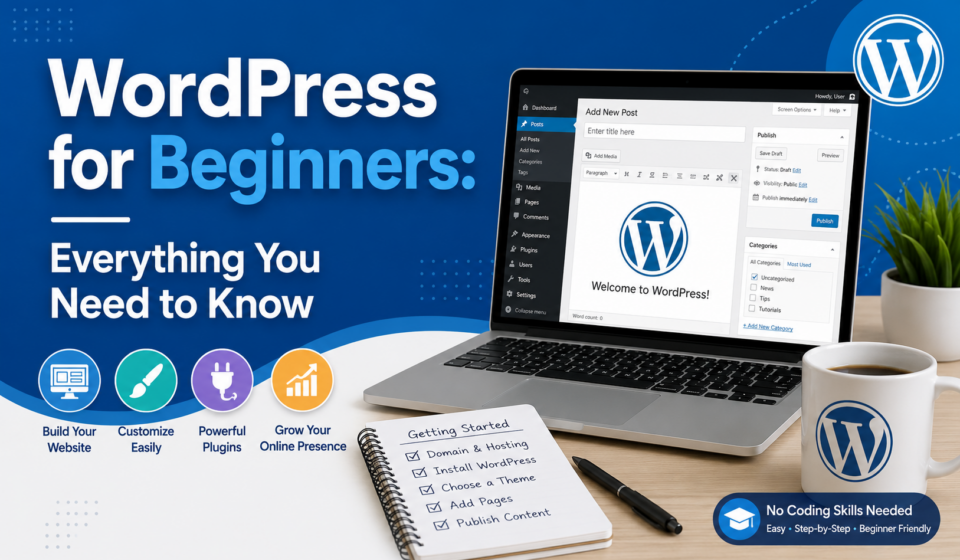
WordPress for Beginners: Everything You Need to Know
If you’re planning to build a website without learning complex programming, WordPress is the best place to start. Whether you want to create a personal blog, business website, online portfolio, eCommerce store, or educational platform, WordPress makes website creation accessible to everyone.
Today, more than 40% of all websites on the internet are powered by WordPress, making it the world’s most popular content management system (CMS). Its popularity comes from its flexibility, ease of use, thousands of themes and plugins, and a massive global community.
In this beginner’s guide, you’ll learn everything you need to know about WordPress—from choosing hosting and installing WordPress to creating pages, publishing blog posts, customizing your site, improving SEO, and keeping your website secure.
Let’s get started.
What is WordPress?
WordPress is a free, open-source Content Management System (CMS) that allows users to create and manage websites without writing code.
Originally launched in 2003 as a blogging platform, WordPress has evolved into a powerful website-building system capable of creating almost any type of website.
You can build:
- Personal blogs
- Business websites
- Portfolio websites
- News websites
- Online stores
- Membership websites
- Online courses
- Booking websites
- Forums
- Non-profit websites
- Landing pages
The best part is that beginners can build professional-looking websites using drag-and-drop page builders and pre-designed themes.
WordPress.org vs WordPress.com
Many beginners confuse these two platforms.
WordPress.org
This is the self-hosted version.
Advantages:
- Complete control
- Thousands of themes
- Unlimited plugins
- Better SEO
- Full customization
- Monetization freedom
Ideal for businesses and professionals.
WordPress.com
This is a hosted service where WordPress manages the hosting.
Advantages:
- Easier setup
- Hosting included
- Less maintenance
Limitations:
- Restricted customization
- Limited plugins (depending on plan)
- Monthly subscription
For most users, WordPress.org is the recommended choice.
Why Choose WordPress?
There are many reasons why millions of people choose WordPress.
Easy to Learn
No coding knowledge is required.
Free
WordPress software is completely free.
SEO Friendly
WordPress is designed with search engines in mind.
Mobile Responsive
Most modern themes automatically adapt to smartphones and tablets.
Highly Customizable
With thousands of plugins and themes, you can build almost anything.
Secure
Regular updates help keep your website protected.
Large Community
Millions of developers, designers, and educators contribute tutorials, themes, and plugins.
What You Need Before Installing WordPress
You’ll need:
- Domain name
- Web hosting
- SSL Certificate
- WordPress software
Many hosting companies install WordPress with one click.
Installing WordPress
Most hosting providers offer one-click installation.
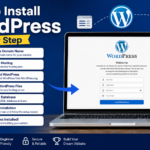
The basic steps include:
- Purchase hosting.
- Register your domain.
- Log in to your hosting account.
- Click “Install WordPress.”
- Enter your site details.
- Create an admin username and password.
- Finish the installation.
After installation, log in at:
yourdomain.com/wp-adminUnderstanding the WordPress Dashboard
The Dashboard is your website’s control panel.
Main sections include:
- Dashboard
- Posts
- Media
- Pages
- Comments
- Appearance
- Plugins
- Users
- Tools
- Settings
Spend some time exploring these sections before creating content.
Posts vs Pages
One of the biggest beginner questions is the difference between posts and pages.
Posts
Posts are used for:
- Blog articles
- News
- Updates
- Tutorials
Posts are organized by categories and tags.
Examples:
- WordPress Tips
- SEO Guide
- Web Design Tutorials
Pages
Pages contain permanent information.
Examples:
- Home
- About
- Contact
- Services
- Privacy Policy
Pages do not use categories.
Themes: Controlling Your Website Design
Themes determine how your website looks.
Popular free themes include:
- Astra
- GeneratePress
- Kadence
- Blocksy
- Neve
Good themes should be:
- Fast
- Responsive
- SEO-friendly
- Easy to customize
- Regularly updated
Plugins: Adding Features
Plugins extend WordPress functionality.
Popular plugins include:
SEO
- Yoast SEO
- Rank Math
Security
- Wordfence
- Sucuri
Backup
- UpdraftPlus
Forms
- WPForms
Speed
- LiteSpeed Cache
- WP Rocket
eCommerce
- WooCommerce
Install only the plugins you truly need to keep your website fast and secure.
Creating Your First Page
To create a page:
- Go to Pages.
- Click Add New.
- Enter a title.
- Add your content.
- Insert images if needed.
- Publish.
Common pages include:
- Home
- About
- Services
- Contact
- Blog
Creating Your First Blog Post
Go to:
Posts → Add New
Add:
- Title
- Content
- Images
- Categories
- Tags
- Featured Image
Click Publish.
Congratulations! Your first blog post is live.
Categories and Tags
Categories organize broad topics.
Examples:
- WordPress
- SEO
- Digital Marketing
- Web Design
Tags provide more specific keywords.
Examples:
- Plugins
- Themes
- Gutenberg
- Elementor
Use categories thoughtfully and avoid excessive tagging.
Uploading Images
Images improve readability and engagement.
Before uploading:
- Compress images
- Rename files descriptively
- Add ALT text
- Use WebP format when possible
Optimized images improve website speed and accessibility.
Choosing a Page Builder
Although WordPress includes the Gutenberg block editor, page builders make creating layouts easier.
Popular options:
- Elementor
- Beaver Builder
- Bricks Builder
- Divi Builder
Beginners often start with Elementor because of its user-friendly drag-and-drop interface.
Essential WordPress Settings
Review these settings after installation:
General
- Site title
- Tagline
- Time zone
Permalinks
Use:
Post NameThis creates clean, SEO-friendly URLs.
Reading
Choose:
- Static homepage
- Latest posts
Discussion
Control comments and spam settings.
WordPress SEO Basics
Search Engine Optimization helps your website rank higher in search results.
Beginner SEO tips:
- Write quality content
- Use keywords naturally
- Optimize titles
- Write meta descriptions
- Add internal links
- Use headings properly
- Optimize images
- Improve page speed
- Make your site mobile-friendly
An SEO plugin simplifies many optimization tasks.
Website Speed Tips
Fast websites provide a better user experience and support SEO.
Improve speed by:
- Using fast hosting
- Installing a caching plugin
- Compressing images
- Limiting plugins
- Choosing a lightweight theme
- Enabling lazy loading
- Using a Content Delivery Network (CDN)
Regular performance testing helps identify bottlenecks.
WordPress Security
Protect your website by following best practices.
- Use strong passwords.
- Enable two-factor authentication.
- Keep WordPress updated.
- Update themes and plugins regularly.
- Remove unused plugins.
- Install a security plugin.
- Back up your site frequently.
- Limit login attempts.
- Use HTTPS with an SSL certificate.
Security is an ongoing process, not a one-time task.
Backing Up Your Website
Backups allow you to restore your website if something goes wrong.
Back up:
- Files
- Database
- Themes
- Plugins
- Media
Schedule automatic backups and store copies in cloud services such as Google Drive or Dropbox.
Common Beginner Mistakes
Avoid these common issues:
- Installing too many plugins
- Ignoring updates
- Using weak passwords
- Forgetting backups
- Publishing low-quality content
- Neglecting image optimization
- Choosing poor hosting
- Not using SSL
- Ignoring SEO
- Using a cluttered design
Learning from these mistakes will save time and improve your site’s performance.
How to Maintain Your WordPress Website
A healthy website requires regular maintenance.
Weekly tasks:
- Update WordPress
- Update plugins
- Update themes
- Check backups
- Review security alerts
- Remove spam comments
- Test forms
- Monitor site speed
- Fix broken links
Consistent maintenance keeps your site secure and reliable.
Best Free Resources to Learn WordPress
Expand your skills through:
- Official WordPress documentation
- YouTube tutorials
- WordPress community blogs
- Online courses
- Local WordPress meetups
- Practice websites
The more you experiment, the faster you’ll learn.
Frequently Asked Questions
Is WordPress free?
Yes. The WordPress software is free to download and use. However, you’ll typically pay for hosting, a domain name, and any premium themes or plugins you choose.
Do I need coding skills?
No. Most websites can be built using WordPress’s block editor or drag-and-drop page builders without writing code.
Can WordPress build an online store?
Absolutely. With WooCommerce, WordPress can power everything from small shops to large eCommerce businesses.
Is WordPress good for SEO?
Yes. WordPress provides an excellent foundation for SEO, and plugins such as Yoast SEO or Rank Math make optimization even easier.
How long does it take to learn WordPress?
Most beginners can learn the basics in a few days. Building advanced websites may take several weeks or months of practice.
Final Thoughts
WordPress is one of the most beginner-friendly and powerful website-building platforms available today. Its flexibility, extensive ecosystem of themes and plugins, and supportive community make it an excellent choice for anyone looking to establish an online presence.
As a beginner, focus on mastering the fundamentals: understanding the dashboard, creating pages and posts, customizing your theme, installing essential plugins, and following best practices for SEO, speed, and security. With consistent practice, you’ll gain the confidence to create websites for personal projects, businesses, or clients.
Remember that every expert started as a beginner. Build, experiment, make mistakes, and keep learning. WordPress offers endless opportunities to grow your skills and create professional websites that make an impact.
