





How to Create an Online Store with WooCommerce
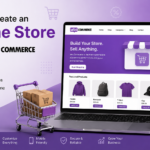
Creating an online store has never been easier. Whether you’re selling physical products, digital downloads, subscriptions, or services, WooCommerce is one of the most powerful and flexible eCommerce solutions available. Built specifically for WordPress, WooCommerce allows anyone—from beginners to experienced developers—to launch a professional online store without spending thousands of dollars.
Today, millions of businesses worldwide trust WooCommerce because it’s free, customizable, SEO-friendly, and supported by thousands of themes and plugins.
In this complete guide, you’ll learn exactly how to create an online store with WooCommerce, from choosing hosting to launching your first products and optimizing your store for sales.
Why Choose WooCommerce?
WooCommerce powers a significant share of online stores worldwide, making it one of the most popular eCommerce platforms available.
Some of its biggest advantages include:
- Free and open-source
- Full ownership of your website
- Unlimited products
- Supports physical and digital products
- Easy integration with WordPress
- SEO-friendly architecture
- Thousands of themes and plugins
- Multiple payment gateway options
- Flexible shipping methods
- Highly customizable
Unlike hosted platforms, WooCommerce gives you complete control over your store, design, customer data, and marketing.
What You’ll Need Before You Start
Before building your online store, make sure you have:
- A domain name
- Reliable web hosting
- WordPress installed
- SSL Certificate (HTTPS)
- WooCommerce plugin
- Product images
- Product descriptions
- Payment gateway account
If your hosting provider offers one-click WordPress installation, the setup becomes even easier.
Step 1: Choose the Right Hosting
Your hosting affects your website’s:
- Speed
- Security
- SEO
- Customer experience
- Sales
Look for hosting that offers:
- SSD Storage
- Free SSL
- Daily Backups
- PHP 8+
- Automatic WordPress Updates
- Malware Protection
- Excellent Customer Support
Managed WordPress hosting is ideal if you want minimal technical maintenance.
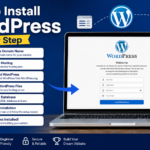
Step 2: Install WordPress
Most hosting providers include one-click WordPress installation.
After installation:
- Log into your WordPress dashboard.
- Choose a clean theme.
- Update WordPress.
- Remove unnecessary plugins.
Now you’re ready to build your store.
Step 3: Install WooCommerce
Navigate to:
Plugins → Add New
Search for:
WooCommerce
Click:
Install Now
Then:
Activate
WooCommerce automatically launches its setup wizard.
Step 4: Complete the WooCommerce Setup Wizard
The wizard asks for:
- Store Name
- Country
- Address
- Currency
- Product Types
- Business Details
You’ll also choose:
- Physical products
- Digital products
- Subscription support (optional)
The wizard automatically creates important pages:
- Shop
- Cart
- Checkout
- My Account
These pages are essential for your online store.
Step 5: Choose an eCommerce Theme
Your theme determines how your store looks.
A good WooCommerce theme should include:
- Mobile responsiveness
- Fast loading
- Product filtering
- Cart support
- Customization options
- SEO optimization
Popular WooCommerce themes include:
- Astra
- Kadence
- Blocksy
- GeneratePress
- Storefront
- OceanWP
Choose one that matches your brand identity.
Step 6: Configure Store Settings
Go to:
WooCommerce → Settings
Configure:
General
- Store address
- Currency
- Selling locations
- Tax settings
Products
- Product measurements
- Reviews
- Inventory
- Product visibility
Shipping
Create shipping zones such as:
- Domestic
- International
- Local delivery
- Local pickup
Set shipping costs accordingly.
Step 7: Configure Payment Methods
Customers expect multiple payment options.
WooCommerce supports:
- Stripe
- PayPal
- Bank Transfer
- Cash on Delivery
- Razorpay
- Square
- Mollie
- Authorize.Net
Choose payment methods suitable for your target audience.
Always test payments before launching.
Step 8: Add Your Products
Navigate to:
Products → Add New
For each product, include:
Product Title
Use descriptive keywords.
Example:
“Wireless Bluetooth Headphones”
Product Description
Explain:
- Features
- Benefits
- Specifications
- Usage
Product Images
Use:
- High resolution
- White backgrounds
- Multiple angles
- Zoom-friendly photos
Product Categories
Example:
- Electronics
- Fashion
- Home Decor
- Books
Categories improve navigation.
Product Tags
Add relevant keywords to improve searchability.
Step 9: Set Product Prices
WooCommerce lets you define:
- Regular Price
- Sale Price
You can also schedule discounts.
Example:
Regular Price: $100
Sale Price: $79
Scheduled promotions can increase conversions during holidays or seasonal campaigns.
Step 10: Manage Inventory
WooCommerce includes inventory management.
You can track:
- Stock quantity
- Low stock alerts
- Out-of-stock status
- Backorders
- SKU numbers
Proper inventory management prevents overselling.
Step 11: Configure Shipping Options
Shipping directly affects customer satisfaction.
Popular methods include:
- Flat Rate
- Free Shipping
- Local Pickup
- Weight-Based Shipping
- Table Rate Shipping
Many businesses offer free shipping above a minimum purchase amount to encourage larger orders.
Step 12: Set Up Taxes
WooCommerce supports automatic tax calculations.
You can configure:
- Country taxes
- State taxes
- VAT
- GST
- Sales tax
Always verify tax requirements for your region.
Step 13: Customize Your Store Pages
Important pages include:
Homepage
Feature:
- Best Sellers
- Categories
- Promotions
- Testimonials
- Call-to-action buttons
Shop Page
Organize products with:
- Filters
- Categories
- Sorting options
Product Pages
Include:
- Large images
- Videos
- Specifications
- Customer reviews
- Related products
Step 14: Install Essential WooCommerce Plugins
Useful plugins include:
WooCommerce PDF Invoices
Automatically generates invoices.
Rank Math SEO or Yoast SEO
Improves search rankings.
LiteSpeed Cache or WP Rocket
Boosts website speed.
Wordfence Security
Protects against attacks.
UpdraftPlus
Creates automatic backups.
MailPoet
Builds email marketing campaigns.
Only install plugins you truly need to keep your website fast.
Step 15: Optimize for SEO
Search Engine Optimization helps customers find your products.
Best practices include:
- SEO-friendly URLs
- Keyword-rich titles
- Meta descriptions
- Image ALT text
- Internal linking
- Product schema
- Fast loading speed
Also create helpful blog content related to your products to attract organic traffic.
Step 16: Improve Website Speed
Fast websites increase sales.
Ways to improve speed:
- Compress images
- Enable caching
- Use a CDN
- Minify CSS and JavaScript
- Optimize your database
- Choose fast hosting
Aim for a loading time of under three seconds.
Step 17: Secure Your Online Store
Security builds customer trust.
Protect your store by:
- Using SSL
- Strong passwords
- Two-factor authentication
- Regular backups
- Malware scanning
- Firewall protection
- Updating WordPress, themes, and plugins
Never ignore security updates.
Step 18: Test Everything Before Launch
Test every part of your store.
Check:
- Product pages
- Shopping cart
- Checkout process
- Payment gateway
- Shipping calculations
- Mobile responsiveness
- Contact forms
- Email notifications
Fix any issues before accepting orders.
Step 19: Launch Your Store
Congratulations!
Your WooCommerce store is ready.
Announce your launch through:
- Email newsletters
- Google Business Profile
Early promotion helps attract your first customers.
Step 20: Market Your WooCommerce Store
Launching is just the beginning.
Successful stores invest in marketing.
Popular strategies include:
Content Marketing
Write helpful blog posts related to your niche.
SEO
Optimize every product page.
Email Marketing
Send:
- Welcome emails
- Discount offers
- Cart recovery emails
- Product recommendations
Social Media
Share:
- Product photos
- Customer reviews
- Videos
- Behind-the-scenes content
Google Ads
Drive immediate traffic with targeted campaigns.
Facebook & Instagram Ads
Reach highly targeted audiences based on interests and behaviors.
Common WooCommerce Mistakes to Avoid
Avoid these common mistakes:
- Using poor-quality product images
- Ignoring SEO
- Slow website speed
- Complicated checkout
- Weak product descriptions
- No backup system
- Too many plugins
- Ignoring mobile users
- No SSL certificate
- Not testing before launch
Fixing these issues early improves conversions and customer satisfaction.
Frequently Asked Questions (FAQs)
Is WooCommerce free?
Yes. WooCommerce is free to install and use. However, you may pay for premium themes, plugins, hosting, or payment processing fees.
Can I sell digital products?
Absolutely. WooCommerce supports digital downloads such as eBooks, software, music, templates, and online courses.
Does WooCommerce support mobile shopping?
Yes. Modern WooCommerce themes are responsive and work well on smartphones and tablets.
Which payment gateways work with WooCommerce?
Popular options include Stripe, PayPal, Square, Razorpay, bank transfers, and many region-specific gateways.
Can WooCommerce handle large stores?
Yes. With quality hosting and proper optimization, WooCommerce can manage thousands of products and high traffic volumes.
Is WooCommerce SEO-friendly?
Yes. Combined with WordPress and an SEO plugin, WooCommerce provides an excellent foundation for search engine optimization.
Final Thoughts
WooCommerce is one of the most powerful and flexible platforms for building an online store. Whether you’re launching a small side business or creating a large-scale eCommerce website, it provides the tools you need to manage products, accept payments, track inventory, and grow your business.
Focus on creating a fast, secure, and user-friendly shopping experience. Invest in high-quality product images, write compelling descriptions, optimize your store for search engines, and continually improve based on customer feedback and analytics. With consistent effort and smart marketing, your WooCommerce store can become a reliable source of online revenue for years to come.
