






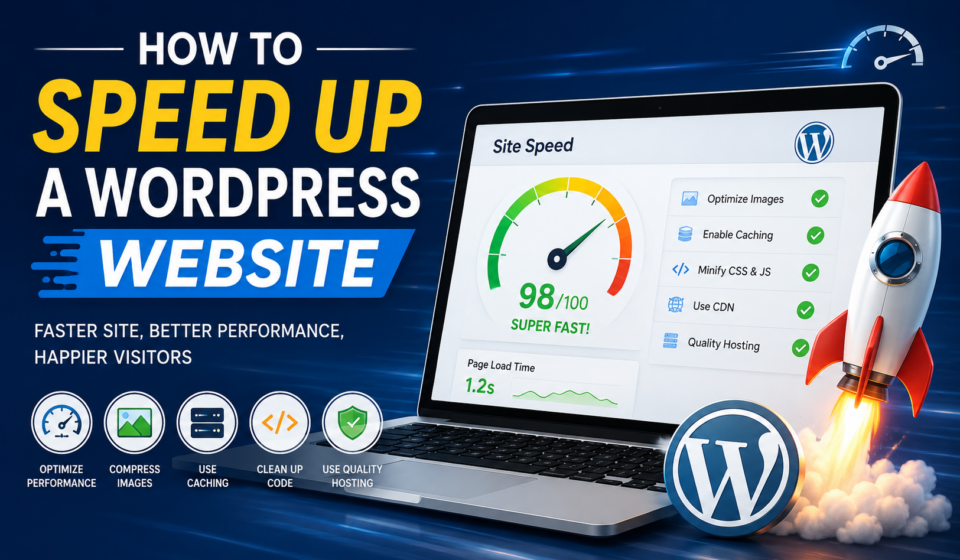
How to Speed Up a WordPress Website
Website speed is one of the most important factors in your WordPress site’s success. Whether you’re running a blog, business website, portfolio, or WooCommerce store, visitors expect pages to load almost instantly. Research consistently shows that even a one-second delay can increase bounce rates, reduce conversions, and negatively impact search engine rankings.
Google also considers page experience and website performance as important ranking factors. A faster website improves user satisfaction, boosts SEO, increases conversions, and reduces server load.
In this comprehensive guide, you’ll learn the most effective techniques to speed up your WordPress website, from choosing the right hosting to advanced optimization methods.
Why Website Speed Matters
Before diving into optimization techniques, let’s understand why speed is so important.
Better User Experience
Visitors expect websites to load in under three seconds. Slow websites frustrate users, causing them to leave before exploring your content.
Benefits include:
- Lower bounce rate
- Longer session duration
- More page views
- Higher customer satisfaction
Improved SEO Rankings
Google rewards fast websites.
A faster website can lead to:
- Higher search rankings
- Better Core Web Vitals scores
- More organic traffic
- Increased crawl efficiency
Higher Conversion Rates
Whether you’re selling products or collecting leads, speed directly impacts revenue.
Studies show that even a one-second improvement can significantly increase:
- Online sales
- Newsletter signups
- Contact form submissions
- Customer retention
Lower Server Costs
Optimized websites consume fewer server resources, reducing:
- CPU usage
- Memory usage
- Bandwidth
- Hosting expenses
What Causes a Slow WordPress Website?
Several factors can slow down WordPress.
Common causes include:
- Cheap web hosting
- Large image files
- Too many plugins
- Poorly coded themes
- No caching
- Large CSS and JavaScript files
- Database bloat
- External scripts
- No Content Delivery Network (CDN)
Fortunately, most of these issues are easy to fix.
Step 1: Choose High-Quality WordPress Hosting
Hosting is the foundation of website performance.
If your hosting provider is slow, no optimization plugin can fully solve the problem.
Look for hosting that offers:
- SSD or NVMe storage
- LiteSpeed servers
- HTTP/3 support
- PHP 8.x
- Built-in caching
- Daily backups
- Strong uptime
Recommended Hosting Types
Shared Hosting
- Best for beginners
- Affordable
- Suitable for low traffic
Cloud Hosting
- Better performance
- Scalable
- Ideal for growing websites
Managed WordPress Hosting
- Premium speed
- Automatic updates
- Advanced security
- Excellent support
Step 2: Use a Lightweight WordPress Theme
Heavy themes often include unnecessary features that slow down websites.
Choose themes that focus on speed.
Recommended lightweight themes:
- Astra
- GeneratePress
- Kadence
- Blocksy
- Hello Elementor (for Elementor users)
Avoid themes packed with dozens of animations and unused page builders.
Step 3: Install a Caching Plugin
Caching is one of the fastest ways to improve website speed.
Instead of generating every page dynamically, caching creates static HTML pages that load much faster.
Popular caching plugins include:
- LiteSpeed Cache
- WP Rocket
- W3 Total Cache
- WP Super Cache
Benefits:
- Faster page loading
- Reduced server usage
- Better Core Web Vitals
- Improved SEO
Step 4: Optimize Images
Images are often the largest files on a website.
Uploading unoptimized images dramatically slows loading speed.
Best Practices
Resize images before uploading.
Example:
Instead of uploading:
5000 × 3000 pixels
Use:
1200 × 800 pixels
or
1920 × 1080 pixels if needed.
Compress Images
Use compression tools such as:
- ShortPixel
- Imagify
- Smush
- TinyPNG
Compression can reduce image size by 60–90% without noticeable quality loss.
Use Modern Image Formats
Instead of JPG or PNG, use:
- WebP
- AVIF (if supported)
These formats are significantly smaller while maintaining excellent quality.
Step 5: Enable Lazy Loading
Lazy loading delays loading images until users scroll near them.
Benefits:
- Faster initial page load
- Lower bandwidth usage
- Better mobile performance
WordPress now supports lazy loading by default.
Step 6: Minify CSS, JavaScript, and HTML
Minification removes unnecessary:
- Spaces
- Comments
- Line breaks
This reduces file size.
Most caching plugins include automatic minification.
Step 7: Combine CSS and JavaScript Carefully
Older optimization methods recommended combining files.
Modern websites using HTTP/2 or HTTP/3 don’t always benefit from combining files.
Instead:
- Remove unused CSS
- Delay JavaScript execution
- Defer non-critical scripts
This often produces better results.
Step 8: Remove Unused Plugins
Every plugin adds code.
Ask yourself:
- Do I actually use it?
- Does another plugin already provide this feature?
- Is it updated regularly?
Delete—not just deactivate—unused plugins.
Step 9: Keep WordPress Updated
Always update:
- WordPress Core
- Themes
- Plugins
- PHP version
Updates often include:
- Performance improvements
- Security patches
- Bug fixes
Step 10: Optimize Your WordPress Database
Over time, databases accumulate unnecessary data.
Examples include:
- Spam comments
- Post revisions
- Expired transients
- Drafts
- Trash
Optimization plugins include:
- WP-Optimize
- Advanced Database Cleaner
Clean databases respond much faster.
Step 11: Limit Post Revisions
WordPress stores every edit.
Hundreds of revisions increase database size.
Limit revisions using:
define('WP_POST_REVISIONS', 5);Five revisions are usually enough.
Step 12: Enable GZIP or Brotli Compression
Compression reduces file size before sending data to visitors.
Benefits:
- Smaller downloads
- Faster loading
- Better PageSpeed scores
Most modern hosts enable Brotli or GZIP automatically.
Step 13: Use a CDN (Content Delivery Network)
A CDN stores website files across servers worldwide.
Visitors download files from the nearest location.
Popular CDNs:
- Cloudflare
- BunnyCDN
- KeyCDN
Benefits include:
- Faster global loading
- Reduced hosting load
- Better uptime
- Improved security
Step 14: Reduce External Requests
External scripts increase loading time.
Examples:
- Google Fonts
- Facebook Pixel
- Google Maps
- Live chat widgets
- Third-party ads
Load only what you truly need.
Step 15: Host Fonts Locally
Instead of loading fonts from external servers, host them locally.
Benefits:
- Faster loading
- Better privacy
- Fewer DNS requests
Many optimization plugins can automatically localize Google Fonts.
Step 16: Reduce HTTP Requests
Each file requires an HTTP request.
Examples include:
- CSS
- JavaScript
- Fonts
- Images
Reduce unnecessary requests by:
- Removing unused plugins
- Eliminating unused CSS
- Combining small icons into SVG sprites
- Using system fonts when possible
Step 17: Use the Latest PHP Version
PHP significantly affects WordPress performance.
Always use:
- PHP 8.2
- PHP 8.3 (if supported)
Newer versions execute code much faster.
Step 18: Disable Hotlinking
Hotlinking occurs when other websites display your images using your server.
This wastes bandwidth.
Most hosting providers allow hotlink protection.
Step 19: Clean Your Media Library
Many websites contain:
- Duplicate images
- Unused uploads
- Old files
Cleaning the media library reduces storage and backup size.
Step 20: Optimize WooCommerce
If you run an online store:
- Disable cart fragments where unnecessary
- Optimize product images
- Limit related products
- Remove unnecessary WooCommerce scripts
- Use object caching
WooCommerce stores benefit greatly from these optimizations.
Step 21: Reduce Redirects
Too many redirects slow websites.
Instead of:
Page A → Page B → Page C
Use:
Page A → Page C
Direct redirects are faster.
Step 22: Enable Browser Caching
Browser caching stores static files on visitors’ devices.
Returning visitors load pages much faster.
Cache:
- Images
- CSS
- JavaScript
- Fonts
Step 23: Remove Unused WordPress Features
Consider disabling:
- Emojis
- Embeds
- XML-RPC (if unused)
- Dashicons for visitors
- Unused widgets
Small improvements add up.
Step 24: Monitor Website Performance
Regular testing helps identify issues before they affect users.
Popular tools include:
- Google PageSpeed Insights
- GTmetrix
- Pingdom Website Speed Test
- WebPageTest
Monitor:
- Largest Contentful Paint (LCP)
- Interaction to Next Paint (INP)
- Cumulative Layout Shift (CLS)
- Time to First Byte (TTFB)
Recommended Speed Optimization Plugin Stack
A balanced setup might include:
Caching
- LiteSpeed Cache or WP Rocket
Image Optimization
- ShortPixel or Imagify
Database Optimization
- WP-Optimize
CDN
- Cloudflare
Security
- Wordfence or Solid Security
Avoid installing multiple plugins that perform the same optimization tasks.
Common Mistakes to Avoid
Many website owners accidentally slow their websites by:
- Installing too many plugins
- Using low-quality hosting
- Uploading oversized images
- Ignoring updates
- Using heavy themes
- Loading excessive animations
- Embedding too many videos
- Running multiple page builders
- Ignoring Core Web Vitals
- Not using caching
Speed Optimization Checklist
Use this checklist to ensure your WordPress site is optimized:
- ✅ Choose fast hosting
- ✅ Use a lightweight theme
- ✅ Enable page caching
- ✅ Compress images
- ✅ Convert images to WebP or AVIF
- ✅ Enable lazy loading
- ✅ Minify CSS and JavaScript
- ✅ Remove unused plugins
- ✅ Optimize your database
- ✅ Use the latest PHP version
- ✅ Enable GZIP or Brotli compression
- ✅ Set up a CDN
- ✅ Reduce external scripts
- ✅ Host fonts locally
- ✅ Enable browser caching
- ✅ Monitor Core Web Vitals
- ✅ Test performance regularly
Final Thoughts
Improving your WordPress website’s speed isn’t about applying a single fix—it’s about combining multiple optimization strategies. Start with reliable hosting, a lightweight theme, and effective caching. Then optimize your images, database, and code while using modern technologies like WebP, Brotli, and a CDN.
Remember that website optimization is an ongoing process. Regularly test your site’s performance, remove unnecessary plugins, and keep WordPress, themes, and plugins updated. By following the best practices outlined in this guide, you’ll create a faster, more user-friendly website that ranks better in search engines, delivers an excellent experience for visitors, and supports your long-term business goals.
